
College Connect
Preparing your experience...
Preparing your experience...

Need help? 👋
We're here to help you
Looking for the right college, course or admission guidance? Choose an option below.
Managing lecture notes, assignments, presentations and academic documents can become difficult during college. Learn how to organise your study materials using cloud storage, create a simple folder system and keep important files accessible and secure.
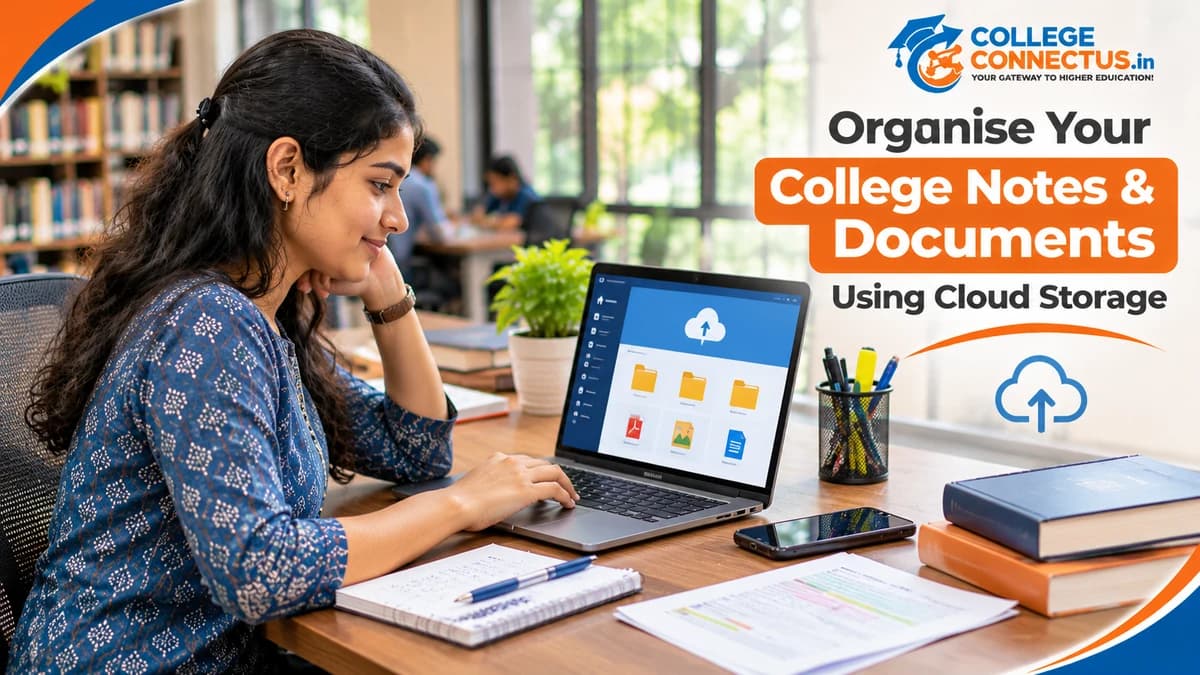
College students work with different types of academic materials throughout the semester. These may include lecture notes, presentations, assignments, practical records, research papers, project files, examination documents and certificates.
As the number of files increases, finding the right document at the right time can become difficult. Important notes may get mixed with older assignments, files may be saved under unclear names, and documents stored on a single device may become inaccessible if that device is unavailable.
Cloud storage can help students organise their academic materials and access supported files across multiple devices.
However, simply uploading everything to an online storage account is not enough. You need a consistent folder structure, meaningful file names, suitable backup practices and basic security precautions.
This guide explains how to organise college notes and documents using cloud storage, create an effective digital filing system and manage academic materials throughout your college journey.
Cloud storage is a service that allows you to save digital files on remote servers through the internet.
Instead of keeping every document only on your laptop or mobile phone, you can upload files to a cloud storage account and access them through supported applications or a web browser.
Common types of files students may store include:
PDF lecture notes.
Word documents.
PowerPoint presentations.
Excel spreadsheets.
Scanned academic documents.
Project reports.
Research papers.
Assignment submissions.
Personal study materials.
Popular cloud storage services include Google Drive, Microsoft OneDrive and Dropbox. Their storage limits, sharing features, pricing and account conditions differ, so review the current terms before choosing one.
Cloud storage can make academic file management easier in several ways.
Access across devices: You can access supported files from a laptop, tablet or mobile phone after signing in.
File organisation: You can create folders and subfolders for subjects, semesters and projects.
Sharing: You can share selected files or folders with classmates and project teammates.
Collaboration: Some services allow multiple users to work on supported documents.
Backup support: Online copies can provide an additional layer of protection against device-related problems.
Remember that cloud storage is not automatically a complete backup system. Account access problems, accidental deletion, synchronisation errors and service limitations can still affect your files.
Before uploading your college materials, decide which cloud storage service is appropriate for your requirements.
Consider the following factors.
Factor | What to Evaluate |
|---|---|
Free storage | How much storage is available under the current free plan? |
Paid plans | What additional storage and features are offered? |
File support | Can you store the formats you regularly use? |
Mobile access | Does the service provide a suitable mobile application? |
Sharing | Can you control who accesses your files? |
Collaboration | Can you edit or comment on supported documents? |
Security | What account protection and sharing controls are available? |
Offline access | Can you access selected files without an internet connection? |
Google Drive is useful for students who regularly work with Google Docs, Sheets and Slides.
It supports file storage, folder organisation and sharing. Storage is shared across eligible Google services under the account's storage arrangements.
OneDrive can be useful for students who work with Microsoft Word, Excel and PowerPoint.
It offers file storage and integration with Microsoft's productivity ecosystem. Available features depend on the account and subscription.
Dropbox provides cloud file storage, synchronisation and sharing features.
It may be useful for students who frequently exchange documents and work with different file formats.
You do not need to create accounts on every available service.
Choose one primary platform based on your devices, academic requirements and storage needs.
If your college provides an institutional account, first check its storage allowance, access period, usage policies and what happens to files after graduation.
A clear folder structure is one of the most important parts of digital organisation.
Avoid uploading every document into one large folder. As your academic files grow, locating a particular assignment or lecture note will become increasingly difficult.
Instead, create a main folder for your college and organise materials by academic year, semester and subject.
You can use the following structure as a starting point:
College/
│
├── Academic-Year-1/
│   ├── Semester-1/
│   │   ├── Subject-1/
│   │   │   ├── Lecture-Notes/
│   │   │   ├── Assignments/
│   │   │   ├── Presentations/
│   │   │   └── Previous-Papers/
│   │   │
│   │   └── Subject-2/
│   │
│   └── Semester-2/
│
├── Academic-Year-2/
│   ├── Semester-3/
│   └── Semester-4/
│
├── Projects/
│   ├── Project-Reports/
│   ├── Source-Files/
│   └── Presentations/
│
├── Research-Materials/
│
├── Certificates/
│
└── Important-Academic-Documents/
This is only an example. You can modify it according to your course and institution.
It separates academic materials by their purpose and academic period.
For example, if you need a database management assignment from your third semester, you can navigate directly to the relevant subject folder.
You do not have to search through hundreds of unrelated files.
Do not mix sensitive personal documents with general lecture notes.
Keep important academic and identity-related documents in a separately organised, access-controlled location.
Only upload sensitive documents when necessary, and avoid sharing their folders publicly.
A good folder structure is useful, but file names also matter.
Files with names such as final.pdf, notes-new.pdf or document123.docx can become difficult to identify later.
Use a consistent naming format that tells you what a file contains.
You can follow this structure:
Semester_Subject_DocumentType_Topic_Date
Examples:
Sem1_Mathematics_LectureNotes_Unit1.pdf

Sem2_Programming_Assignment_Operators.docx

Sem3_DatabaseManagement_PracticalRecord.pdf

Sem4_WebDevelopment_ProjectReport.docx

Sem5_OperatingSystems_RevisionNotes.pdf
You can also include version numbers when working on documents that change frequently.
For example:
WebDevelopment_ProjectReport_v01.docx

WebDevelopment_ProjectReport_v02.docx

WebDevelopment_ProjectReport_Final.docx
Avoid using the word "final" repeatedly for different versions. A date or version number makes it easier to identify the latest document.
Keep file names short but descriptive.
Use a consistent separator such as an underscore or hyphen.
Include the subject or project name.
Add dates where they are useful.
Avoid unnecessary special characters.
Use version numbers for frequently updated files.
Students often work with multiple academic formats. Each type of material should have a clear place in the folder system.
Save lecture notes according to subject, unit or topic.
For example:
Semester-2/
└── Computer-Networks/
    └── Lecture-Notes/
        ├── Unit-1-Network-Basics.pdf
        ├── Unit-2-Network-Models.pdf
        └── Unit-3-Transmission-Media.pdf
If you take handwritten notes, you can scan or photograph them and save them as readable PDF files.
Make sure the text is clear before uploading.
Create a separate folder for assignments.
You can organise them by subject and assignment number.
Keep a copy of the submitted version along with the original working file where appropriate.
Store classroom presentations, seminar slides and project presentations in a separate folder.
Include the subject or topic in the file name.
Create a research folder for academic papers, reference documents and reading materials.
Use clear names and maintain source information so you can identify the original publication when needed.
Do not upload or share copyrighted academic material in ways that violate its licence or the publisher's terms.
Store practical records, source code, datasets and project documentation in separate folders.
For programming projects, use a version control platform where appropriate rather than relying only on cloud file storage.
Group assignments often involve multiple students working on the same documents.
Cloud storage can make collaboration easier by allowing selected files to be shared with teammates.
Set up a folder for each group project.
For example:
Group-Project/
│
├── Project-Plan/
├── Research/
├── Documentation/
├── Presentations/
├── Design-Files/
└── Final-Submission/
Share access only with the students who need it.
Decide who is responsible for each part of the project.
For example:
Team Member | Responsibility |
|---|---|
Student A | Research and references |
Student B | Documentation |
Student C | Presentation |
Student D | Testing and final review |
The actual responsibilities will depend on the project.
Most cloud services provide different permission levels.
Common options include:
Viewer: Can view the shared material.
Commenter: Can add comments where supported.
Editor: Can make changes to the shared material.
Give each teammate only the access they need.
Avoid sharing an entire personal cloud storage account when a specific project folder is sufficient.
Keep the approved version of the project in a separate final-submission folder.
This helps prevent confusion between working drafts and the document submitted to your faculty member.
Some documents may be required during admission, examinations, internships, placements or future education applications.
You should organise them separately from regular class notes.
Examples include:
Class 10 marksheet.
Class 12 marksheet.
Graduation marksheets.
Admission confirmation documents.
Fee receipts.
Transfer certificate, where applicable.
Migration certificate, where applicable.
Internship certificates.
Course completion certificates.
Project completion documents.
Create a folder such as:
Important-Academic-Documents/
│
├── School-Documents/
├── College-Admission/
├── Semester-Marksheets/
├── Certificates/
└── Internship-Documents/
Keep sensitive documents private.
Do not share a folder containing personal identity or financial documents through a public link.
For official submissions, check whether the receiving institution requires original documents, certified copies or a particular digital format. A cloud-stored scan may not replace an officially required document.
Cloud storage and file synchronisation are related, but they are not exactly the same.
Cloud storage allows files to be stored online.
Synchronisation allows changes made on one supported device to be reflected in other connected locations.
For example, if you update a document in a synchronised folder, the latest version may become available on your other connected devices after synchronisation.
However, synchronisation can also replicate accidental changes or deletions, depending on the service and settings.
You may not always have a reliable internet connection.
If you need certain documents during travel, classroom sessions or examinations, use the service's supported offline access feature.
Before travelling, check that:
Important files are downloaded or marked for offline use.
The files open correctly without an internet connection.
You have access to the correct account.
Recent changes have finished synchronising.
Do not assume that every online file is automatically available offline.
Cloud storage is useful, but academic documents and personal information should be handled carefully.
Follow these security practices.
Create a strong and unique password for your cloud account.
Avoid reusing passwords across different services.
Where available, enable two-step verification or multi-factor authentication.
This adds another security layer to the sign-in process.
Regularly check which people can access your shared folders.
Remove access when a project or collaboration ends.
Do not create public access links for identity documents, academic certificates or private information.
Use restricted sharing with specific people when necessary.
If you access your account from a college computer or shared device, sign out after use.
Avoid saving your password on devices that other people can access.
Be careful with emails and messages asking you to sign in through unfamiliar links.
Open the cloud service independently through its official website or application instead of relying on unexpected sign-in links.
Cloud storage can provide an additional copy of your academic documents, but it should not be your only protection for critical files.
A practical backup arrangement may include:
Your primary working files on your computer or phone.
A synchronised cloud copy.
An additional backup of important documents on a separate storage device or another suitable backup location.
For example, you may keep a copy of your final-year project report and important certificates on an external storage device.
Update backups whenever important documents change.
Also understand the cloud service's deleted-file recovery period and version history features. These vary by provider and account type.
Important: A synchronised folder is not necessarily an independent backup. If you delete or overwrite a file, that change may synchronise across devices.
Even with cloud storage, poor organisation can make academic file management difficult.
Avoid these common mistakes.
Create folders according to academic years, semesters, subjects and projects.
Use meaningful names so you can identify documents without opening every file.
Use dates or version numbers to distinguish drafts and final documents.
Share only the specific folder or file required for a project.
Monitor your available storage. Large video files, duplicate documents and unnecessary backups can consume space quickly.
Keep important study materials available offline when necessary.
Remove unnecessary duplicates and organise completed semester materials periodically. Retain documents that may be required later.
You do not need to spend hours organising files every day.
A short weekly review can help you keep your digital study environment manageable.
Frequency | Task |
|---|---|
After each class | Save new notes in the correct subject folder |
After an assignment | Store the working file and submitted copy |
Weekly | Rename files and organise recent downloads |
Monthly | Review duplicates and unused files |
At semester end | Archive completed semester materials |
Before examinations | Organise revision notes and important papers |
Before graduation | Review and preserve important academic documents |
A consistent routine can prevent digital clutter from accumulating throughout the semester.
Organising college notes and documents using cloud storage can make academic file management easier and more convenient.
Start by selecting a suitable storage service, creating a clear folder structure and using meaningful file names. Organise lecture notes, assignments, presentations and important academic documents separately.
For group projects, use controlled sharing permissions. For important files, maintain an additional backup and review your account security settings regularly.
The goal is not to create a complicated digital system. It is to build a simple organisation method that helps you find the right document when you need it.
With consistent file management, you can spend less time searching for academic materials and more time focusing on learning, assignments and college projects.
Explore College Connect Us for more practical guides on digital learning, study resources, college life and academic development.
The right service depends on your devices, storage requirements, collaboration needs and budget. Google Drive, Microsoft OneDrive and Dropbox are commonly used options. Compare their current plans and features before choosing.
Create a main college folder and organise it by academic year, semester and subject. Inside each subject folder, maintain separate folders for lecture notes, assignments, presentations and revision materials.
Some cloud services support offline access for selected files. You generally need to enable the feature or download the files while connected to the internet.
Cloud storage services provide account and file security features, but safe use also depends on your actions. Use strong passwords, enable multi-factor authentication and avoid sharing sensitive files through public links.
You may keep private digital copies of important academic documents for convenience. Store them in a restricted folder and avoid sharing access unnecessarily. Follow the receiving institution's rules when submitting official documents.
Create a dedicated project folder and share it with the relevant teammates. Use appropriate viewer, commenter or editor permissions depending on their responsibilities.
No. Synchronisation and backup serve different purposes. A synchronised deletion or unwanted change may affect connected copies. Maintain an additional backup of important documents.
Remove unnecessary duplicate files, review large downloads, archive old materials and delete files you no longer need. Check the service's storage and recovery rules before removing important documents.
PDF is useful for preserving the layout of notes and documents. Editable formats such as DOCX and PPTX are suitable when you need to modify content. Choose the format based on the purpose and submission requirements.
Save files in the correct folder as soon as practical. Perform a weekly review and organise completed semester materials at the end of each semester.
Explore expert articles, admission guides, career tips, education news, exam preparation, and everything you need to make informed academic decisions.